Lightroom Now Lets You Describe an Edit—How Much Control Should You Hand Over?
You can know what bothers you about a photograph without knowing which slider will fix it.
The face looks too dark. The colour feels cold. There’s something distracting behind the subject. You can explain the problem in ordinary language, but translating that explanation into an edit takes practice. That gap is where Lightroom’s new Prompt to Edit becomes interesting. Adobe’s September 2026 Lightroom desktop update introduced a way to make changes by describing them. Its release notes, updated on 29 September, list prompt-based restoration, retouching and transformations among the additions. The same release also brings improvements to Reflection Removal. Lightroom
I can see why that would appeal to a beginner. Being able to explain an intention is a more welcoming starting point than being confronted with controls whose names mean very little to you. But a welcoming interface doesn’t remove the need to judge the photograph. My interest in this feature is whether it helps photographers make deliberate decisions. If the instruction becomes “make it better,” we’re asking software to decide what better means. That’s a substantial creative choice to hand over. There’s an important distinction before going further. Adobe identifies Prompt to Edit as an early-access feature in Lightroom desktop. This announcement concerns the Lightroom application, rather than Lightroom Classic, which I use. I haven’t tested this feature, so this is an examination of Adobe’s documented workflow and how I would approach it.
According to Adobe’s current guide, you open a photograph in detail view and select Prompt to Edit from the left panel or View menu. You can choose an example instruction, customise it or write your own. Examples include removing dust and scratches, restoring colour and unblurring. Lightroom Those are useful starting points, but they involve different expectations. Removing a scratch from a scanned family photograph is a fairly specific task. “Restore the colours” requires more interpretation. “Unblur” raises another question: does the result reveal recorded detail more clearly, or produce a plausible version of detail that wasn’t adequately captured? A convincing result isn’t automatically an accurate one. That distinction matters most when the photograph contains something you know well. A family member’s face, an animal’s markings or lettering on a sign can look believable at first glance while still being wrong.
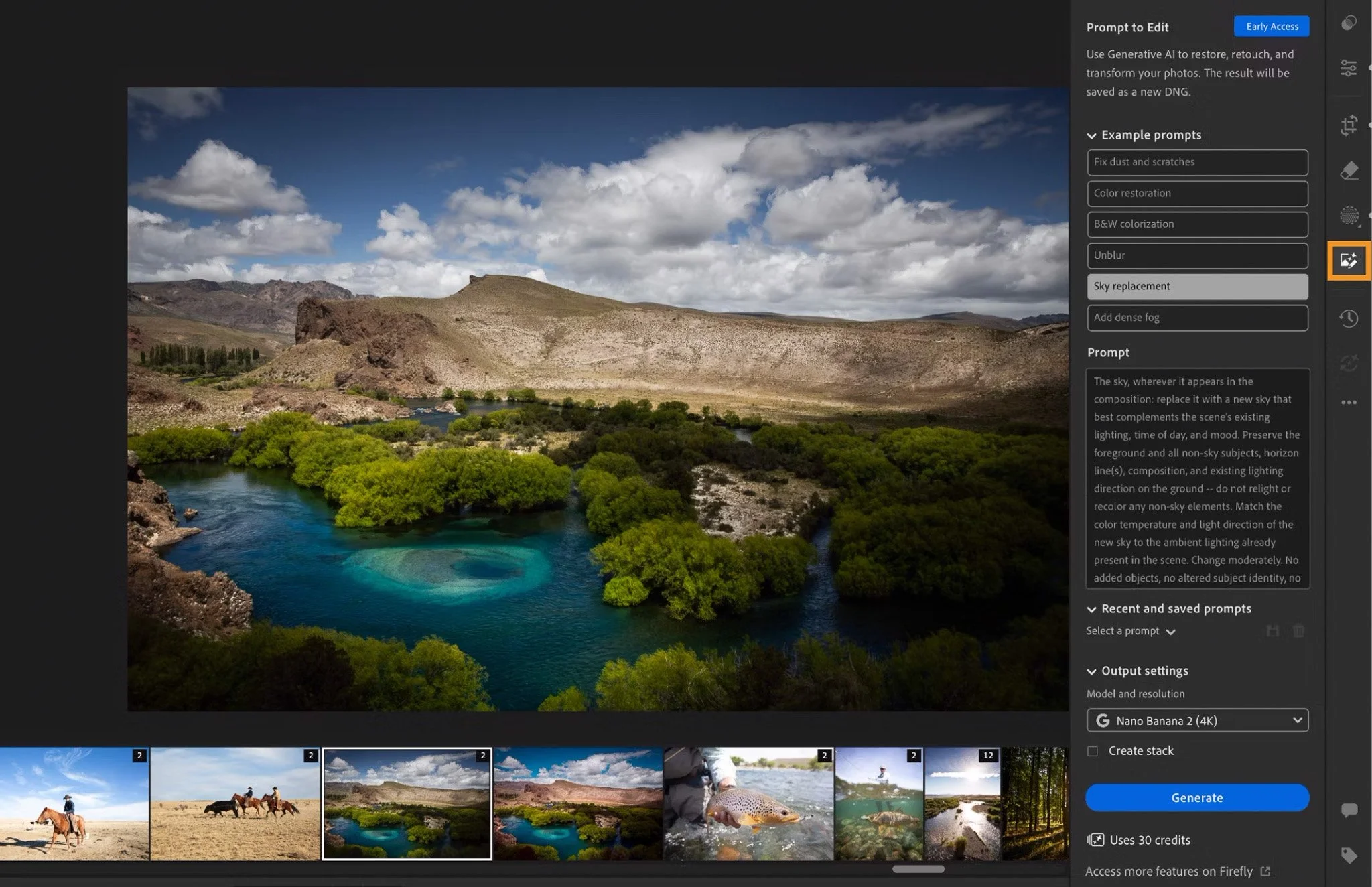
Lightroom’s Prompt to Edit panel lets photographers choose an example instruction or describe their own changes. Image: Adobe.
I would begin with a modest instruction and a clear reason for making it. Imagine an outdoor portrait where the person looks a little lost against the surroundings. “Make this portrait professional” leaves almost everything open to interpretation. The software could interpret professional as smoother skin, different lighting, stronger background blur or a change in colour. A more deliberate brief might be: “Brighten the face slightly while preserving natural skin texture, facial features and the existing background.” That’s a suggested instruction, not a tested recipe. Asking for preservation doesn’t guarantee it. What it does give you is a standard against which to assess the result.
Did the face become easier to see? Did the expression remain intact? Did anything change that you didn’t request?
The same approach works with restoration. “Remove the visible scratches while preserving the person’s features, clothing and background” gives you something more concrete to evaluate than “improve this old photo.” I’d also resist requesting several transformations at once. Change the lighting, remove objects, smooth skin and alter the background in one instruction, and it becomes difficult to identify which change helped—or which introduced a problem. One intention at a time makes comparison easier. For ordinary brightness and colour corrections, I would still begin with familiar controls. Exposure, white balance and a subject mask offer direct ways to make relatively small adjustments. You can see the amount of change, reduce it and revisit the decision. There’s value in that visibility. Moving an exposure slider teaches you something about brightness. Adjusting white balance helps you recognise a colour cast. A mask shows where an adjustment applies. Those connections between action and result build confidence that carries into the next photograph.
Prompt-based editing could help that learning if you use it thoughtfully. Describing what you want forces you to articulate an intention. It could also encourage you to skip the observation entirely if you keep accepting whichever version looks most impressive. The difference is in how you assess the output. Adobe’s guide says the generated result is saved as a DNG beside the original or in a stack. The optional stacking feature is currently supported only in the Cloud. It also provides a credit-balance display in the Prompt to Edit panel. Check your account’s current allowance before making repeated generations. Lightroom Keeping the original nearby is essential to my proposed workflow. A DNG extension doesn’t mean generated changes were recorded by the camera. Treat the output as a new interpretation and retain the original capture as your reference.
First, compare the whole photograph at a comfortable viewing size. Does your eye reach the subject more naturally? Does the colour support the mood? Has the edit solved the problem you identified? Then look closely. For portraits, examine eyes, teeth, hair, glasses and the boundaries around the face. Look at hands and clothing details. With landscapes, inspect horizons, branches, buildings and repeating patterns. Read any visible lettering rather than assuming it survived correctly. These are checks I recommend for generative editing generally, not a report of faults I’ve found in this particular feature.
Finally, step back again. A technically tidy result can still weaken a photograph. Perhaps the background was distracting, but it also explained where the person was. Perhaps the original shadows were deep, but they carried the atmosphere you wanted. Cleaning something up and improving it aren’t always the same decision. Restoration adds another responsibility. Colourising an old black-and-white photograph can make it feel immediate, but without supporting information, the colours are interpretations. A recovered-looking face may deserve careful comparison with other photographs of that person. I would preserve the original scan and identify a colourised or substantially reconstructed version clearly when sharing it. That lets people enjoy the interpretation without confusing it with historical evidence. For personal creative work, you may welcome a much broader transformation. A different sky or imagined setting can be part of the project. The relevant question is what you intend the finished image to represent.
A family record, documentary photograph and openly imaginative composite don’t need identical editing boundaries. They do need decisions that suit their purpose. If you want help recognising what an image needs before choosing the tool, you can explore my private photography lessons in Brisbane. Understanding light, exposure and composition gives you a stronger editing brief, whether you express it through sliders or a sentence.
I’m interested in Prompt to Edit because it could make difficult tasks more approachable. That possibility deserves attention without assuming every generated result will be useful. For me, the strongest approach would be to name the problem, request a specific change, preserve the original and examine what came back. Keep the result because it serves the photograph—not simply because the software produced something polished.
Being able to describe an edit is a useful new option. Being able to recognise when the edit has gone too far remains a photographic skill. Would you use a prompt to handle a difficult restoration, or would you also trust it with the everyday finishing of your photographs?